
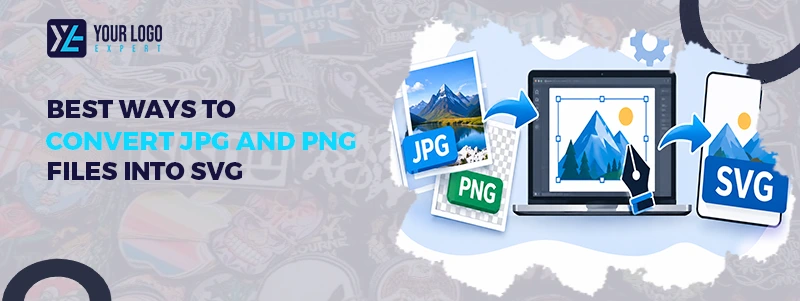
Best Ways to Convert JPG and PNG Files into SVG
Have a JPG or PNG logo that looks blurry when resized? Converting it into SVG can help. SVG files use paths instead of pixels, so they can scale without losing quality.
But not every conversion method gives the same results. Some tools convert images in seconds, while others offer better control over shapes, lines, and colors.
In this guide, we compare the best ways to convert JPG and PNG files into SVG. You will also learn which method works best for logos, icons, and other designs.
What Is the Difference Between JPG, PNG, and SVG?
JPG, PNG, and SVG are three common image formats, but they work in different ways.
JPG is a raster format often used for photos and web images. It uses compression to reduce file size, but this can affect image quality.
PNG is also a raster format. It supports transparent backgrounds and keeps image details without the same type of lossy compression used by JPG.
SVG is a vector format. It uses paths, shapes, and lines to create artwork. You can resize an SVG without making it blurry.
SVG is a good choice for logos, icons, and simple graphics. JPG and PNG are better for photographs and complex images.
Get Your Artwork Ready!
Why Convert JPG and PNG Files into SVG?
Converting raster images into SVG offers several benefits, especially for business logos and artwork. If you want to turn your artwork into embroidery-ready files, consider our custom digitizing service.
- Scalable design: SVG files can be resized for small icons, large banners, and signs without losing sharpness.
- Easy editing: You can change colors, shapes, and lines in vector editing software.
- Better print use: Vector artwork is useful for many print projects because it stays sharp at different sizes.
- Flexible design: SVG files work with many design and cutting programs, including Cricut Design Space.
5 Best Ways to Convert JPG and PNG Files into SVG
Vectorization offers several benefits for businesses and designers. If you want to convert your artwork into embroidery-ready files, consider our custom digitizing service.
- Scalable Designs: Resize your artwork without losing sharpness.
- Easy Editing: Change colors, shapes, and design elements with ease.
- Better Printing: Create clean artwork for T-shirts, banners, signs, and business cards.
- Brand Consistency: Keep your logo clear across websites, packaging, and promotional products.
5 Best Ways to Convert JPG and PNG Files into SVG
There are several ways to convert raster images into SVG. Your choice depends on your design, budget, and required quality.
01: Online JPG to SVG Converters
Online converters are a quick option for people who want to change image formats without installing software. Most tools let you upload a JPG or PNG file and process it through an automatic tracing feature. You can then download the SVG file. This method works best for simple logos, icons, and black-and-white artwork.
Pros
- Easy to use.
- No software installation.
- Quick conversion.
- Suitable for simple images.
Cons
- Limited editing options.
- Fine details may look rough.
- Some tools limit free downloads.
- Results depend on image quality.
Best for: Beginners who need quick conversions for simple graphics.
02: Adobe Illustrator Image Trace
Adobe Illustrator is a professional design program with an Image Trace feature. It can turn raster images into vector artwork. Open your JPG or PNG file in Illustrator. Select the image and use the Image Trace panel. Adjust settings such as colors, paths, corners, and noise.
Once the result looks right, expand the traced artwork and save it as an SVG file. Illustrator gives you more control than most basic online converters. However, it may take time to learn its tools. If you want clean, scalable artwork for printing and branding, consider our vector art conversion service.
Pros
- Good control over tracing.
- Multiple color settings.
- Detailed editing options.
- Suitable for professional designs.
Cons
- Paid software.
- Takes time to learn.
- Complex images may need manual work.
Best for: Designers who need more control over vector artwork.
03: Inkscape Trace Bitmap
Inkscape is a free, open-source vector design program. Its Trace Bitmap feature can convert raster images into vector paths. Import your JPG or PNG file into Inkscape. Select it and open the Trace Bitmap option. Choose a tracing mode based on your image.
You can use brightness cutoff for simple black-and-white artwork or color tracing for designs with multiple shades. After tracing, review the paths and save your work as an SVG file.
Pros
- Free to use.
- Supports different tracing modes.
- Offers basic vector editing.
- Exports SVG files.
Cons
- Interface may be difficult for beginners.
- Results may need cleanup.
- Complex images can create too many paths.
Best for: Beginners and small businesses looking for a free conversion option.
04: AI-Powered Image to SVG Converters
Manual vectorization involves tracing an image using Pen or Bezier tools. A designer creates each shape and curve by hand. This method takes more time but offers better control over details and accuracy. It is suitable for complex logos, custom artwork, and designs that need precise editing.
Automatic vs Manual Vectorization: Which Is Better?
AI-powered converters use automated image processing to trace shapes, colors, and edges. You upload your JPG or PNG file, and the tool creates a vector version. Some tools also offer options to adjust colors and details.
These converters can save time when working with simple graphics. However, you should always check the final file before using it. Small text, thin lines, and complex shapes may not convert correctly.
Pros
- Fast processing.
- Simple upload process.
- Less manual work.
- Useful for basic artwork.
Cons
- Results vary by tool.
- Some features require payment.
- Fine details may need correction.
Best for: Users who want a quick starting point for vector conversion.
05: Professional Vector Art Conversion
Professional vector conversion is a good choice when image quality matters. A vector artist manually reviews the artwork and creates clean paths, shapes, and lines. This helps keep the original design accurate.
Unlike automatic tracing, manual conversion allows better control over small details, text, colors, and curves. It is especially useful for business logos, brand artwork, and designs used for printing. If you want vibrant, durable designs for custom apparel, consider our DTF transfers service.
Pros
- Clean and accurate paths.
- Better control over details.
- Editable vector artwork.
- Suitable for professional use.
Cons
- Costs more than basic online tools.
- Turnaround depends on design complexity.
Best for: Businesses, designers, and brands that need high-quality vector files.
Online Converters vs. Professional Software vs. Manual Conversion
Each method has its own purpose. Here is a quick comparison.
Method | Cost | Ease of Use | Best For |
Online converters | Free or paid | Easy | Simple images |
Adobe Illustrator | Paid | Moderate | Professional editing |
Inkscape | Free | Moderate | Budget-friendly conversion |
AI converters | Free or paid | Easy | Quick results |
Manual conversion | Service-based | No design skills needed | High-quality logos |
Online and AI tools are useful for basic tasks. Professional software gives you more editing control. Manual conversion is often the better choice when accuracy and clean artwork are important.
How to Convert JPG and PNG into SVG Without Losing Quality
You can improve your conversion results by following a few simple steps.
01: Start with a clear image. Use a high-resolution JPG or PNG file. Blurry images can create poor vector paths.
02: Remove unwanted backgrounds. A clean background makes it easier to trace the main design.
03: Choose the right tracing settings. Adjust colors, edges, and paths based on your artwork.
04: Check the vector paths. Look for broken lines, rough edges, and missing details.
05: Save and test your SVG. Open the file in a vector editor to check its appearance and editability.
Remember that converting a photo into SVG does not make it a perfect vector image. Complex photos may need special tracing work or may be better kept in their original format.
Get Professional Vector Art Conversion from Your Logo Experts
A poorly converted logo can look rough on business cards, signs, and other printed materials. Your Logo Experts provides professional vector art conversion to help turn raster images into clean, editable vector files.
Whether you have a JPG logo or a PNG design, our team focuses on accurate details, quality work, and fast turnaround. Need clean vector artwork for your next project? Contact your logo experts today and get a free quote.
Our Services
Get Started
Frequently Asked Questions
Yes. You can use online converters or vector design software.
Yes. PNG images can be traced and saved as SVG files.
SVG is better for scalable graphics, while PNG is useful for raster images and transparent backgrounds.
Inkscape is a popular free option for vector tracing.Q
Yes. Adobe Illustrator offers Image Trace for raster-to-vector conversion.
It creates vector artwork, but the result depends on the original image and tracing quality.
Yes, but detailed photos may produce complex and less accurate vector paths.
Yes. You can edit SVG paths, shapes, and colors in compatible vector software.
Yes. SVG is useful for many print projects because vector artwork can scale without becoming blurry.
The cost depends on image complexity, colors, details, and required edits.
Useful Links
Company Info
- +1 (816) 465-9624
- info@yourlogoexpert.com
- 2501 Chatham Rd STE 4504, Springfield, IL, United States, 62704
Copyright © 2026 Your Logo Expert. All Rights Reserved.
